Context:
ButterflyMX makes it easy to unlock doors and gates with just a tap using resident key in Apple Wallet on iPhone or Apple Watch, eliminating the need to dig for keys or open an app. This makes accessing your property faster, easier, and more secure than ever. This guide walks you through how to set up your key in the ButterflyMX mobile app, ensuring seamless access to your property with just a tap.
How to create a resident key
- Open the ButterflyMX app
- Open the ButterflyMX app on your iPhone.
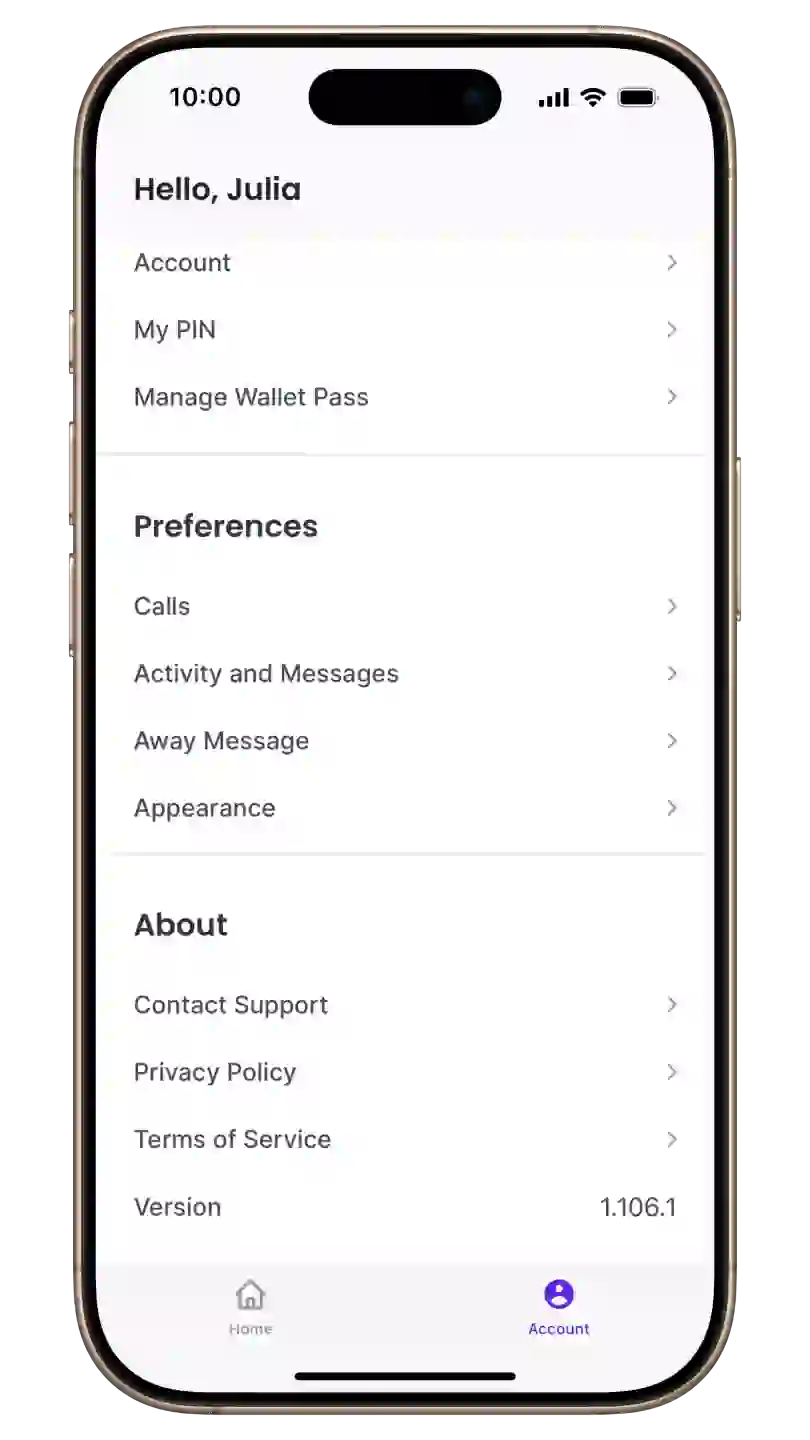
- Navigate to the ‘Account’ section and select ‘Manage Wallet Pass’
-
Navigate to the ‘Account’ section in your ButterflyMX mobile app and select ‘Manage Wallet Pass’.
-
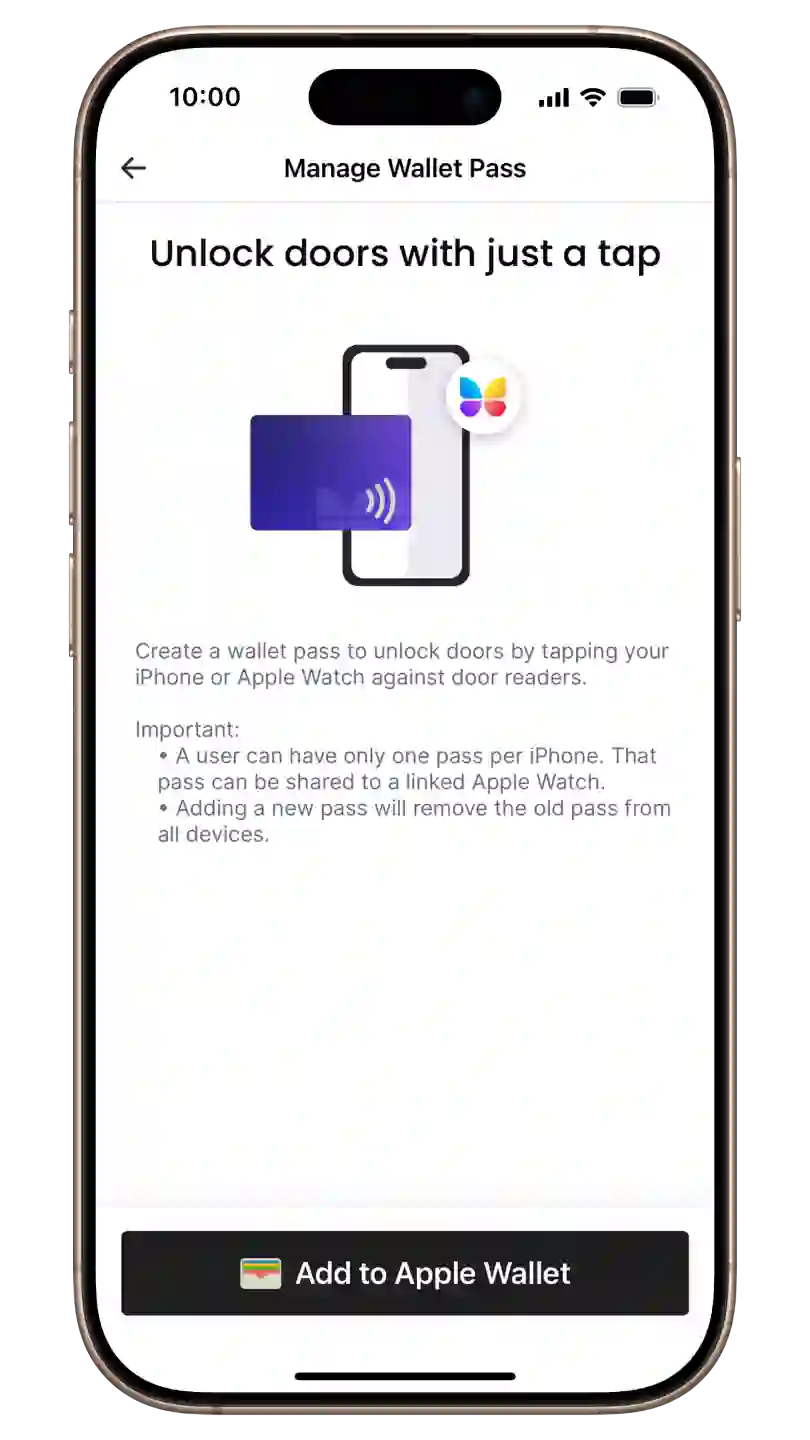
- Tap ‘Add to Apple Wallet’
- Tap ‘Add to Apple Wallet’ and wait for your key to be generated. This process might take up to 60 seconds. Keep the app open during this process.
-
Note: Each user can have only one key per iPhone. This key can be shared with a linked Apple Watch. Adding a new key will remove the old key from all devices.
- Follow the prompts
-
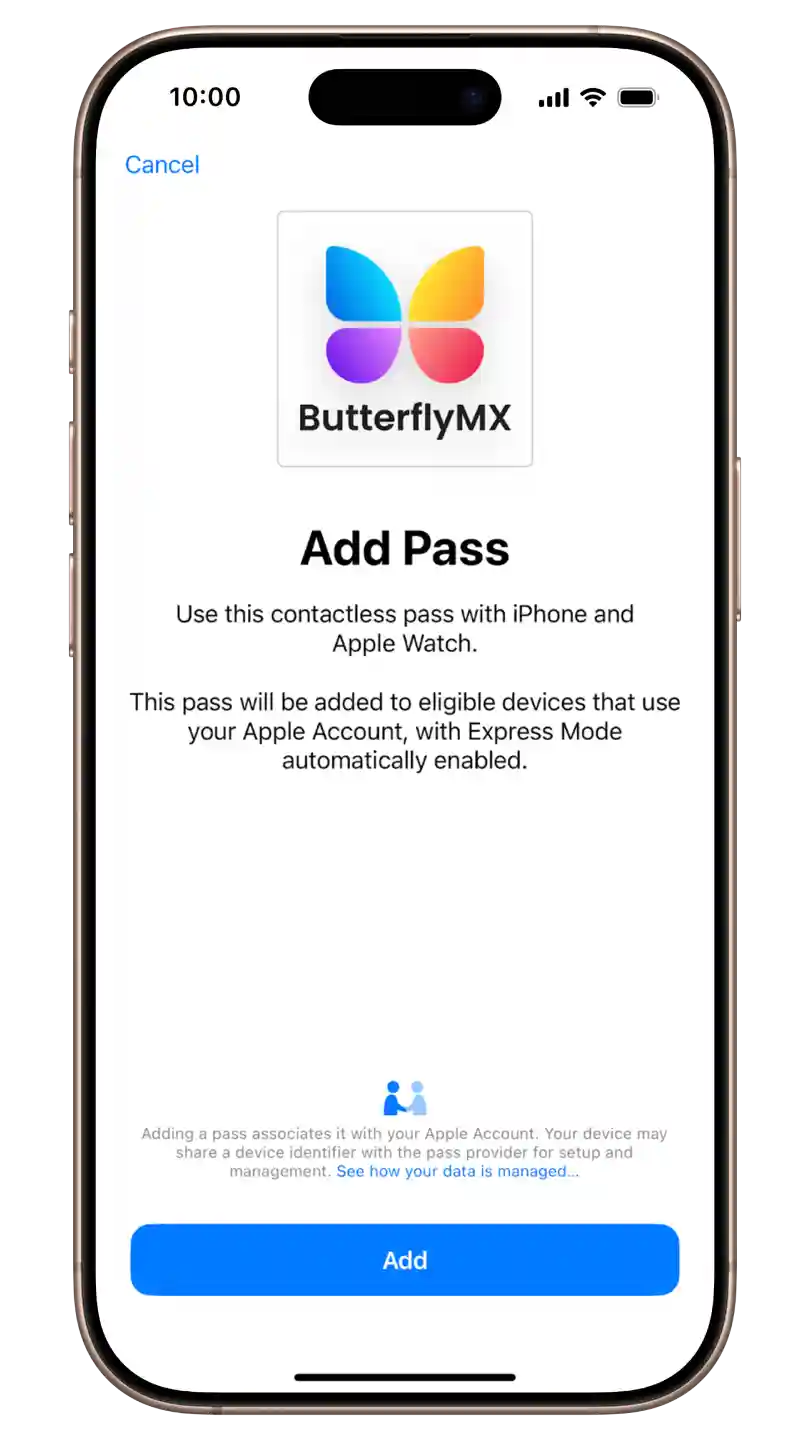
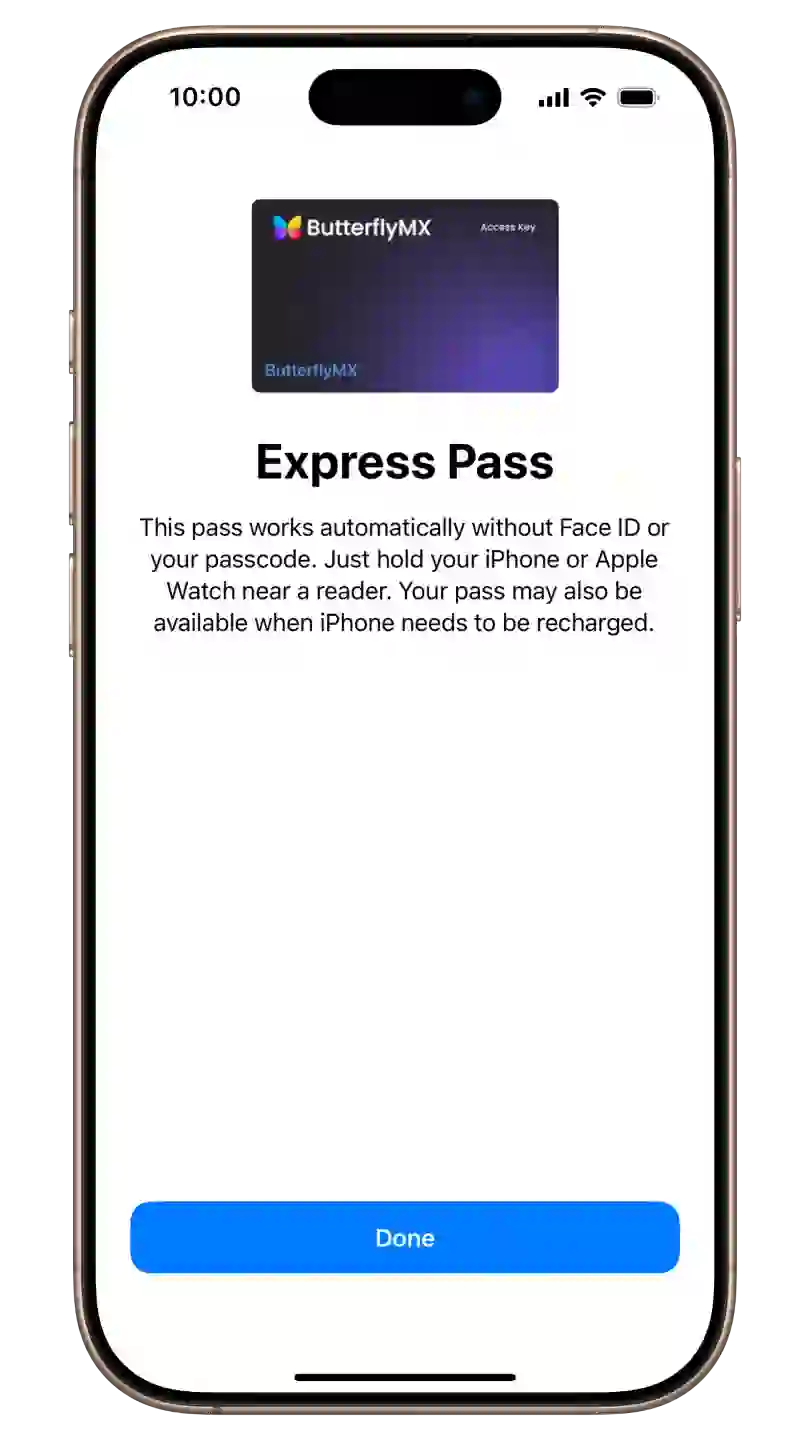
Follow the prompts to add your key to your Apple Wallet.
-
- Use your key
-
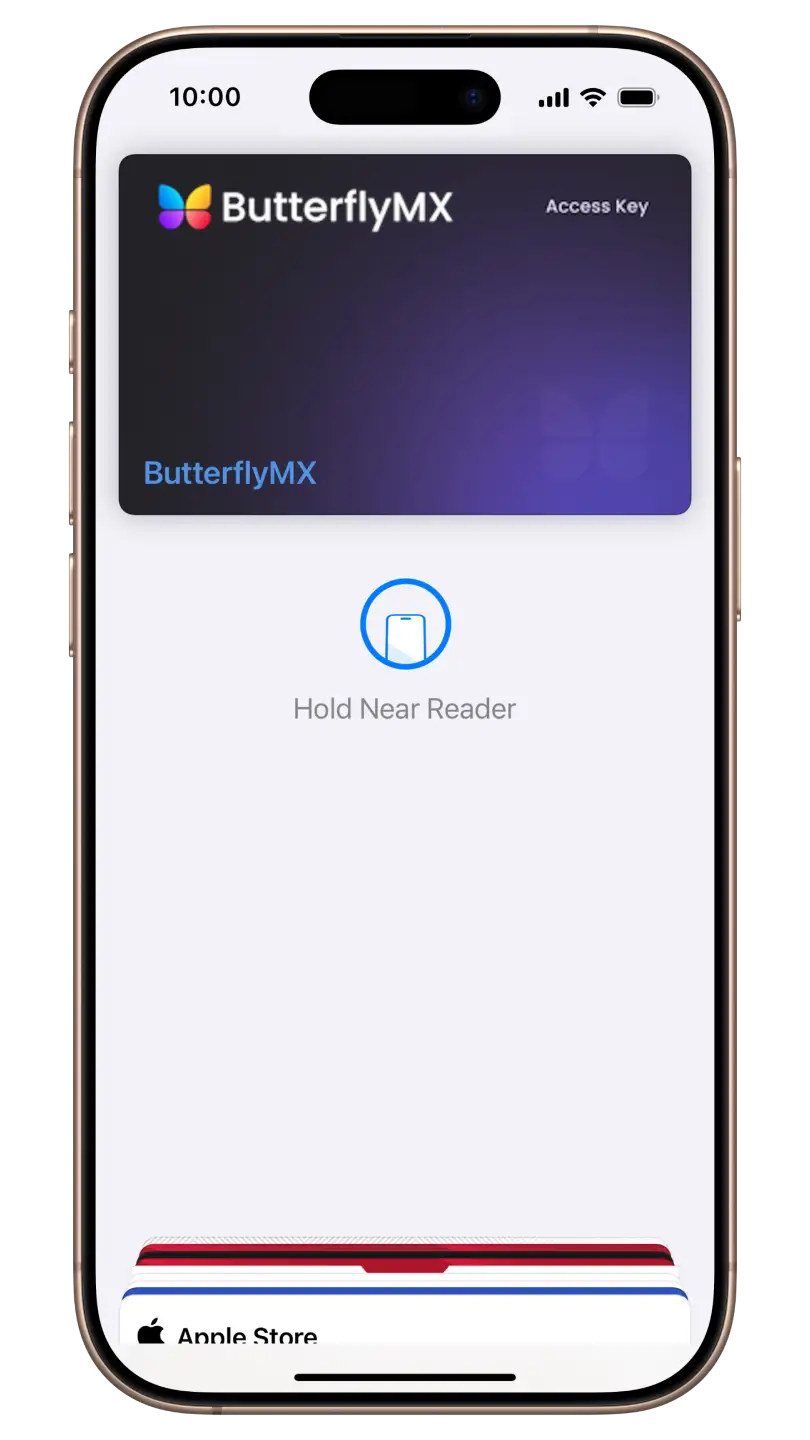
You’re now ready to use your key! Your key is automatically shared with your linked Apple Watch, so you can use either device to gain access. Simply hold your iPhone or Apple Watch up to the ButterflyMX reader to unlock your door or gate.
-