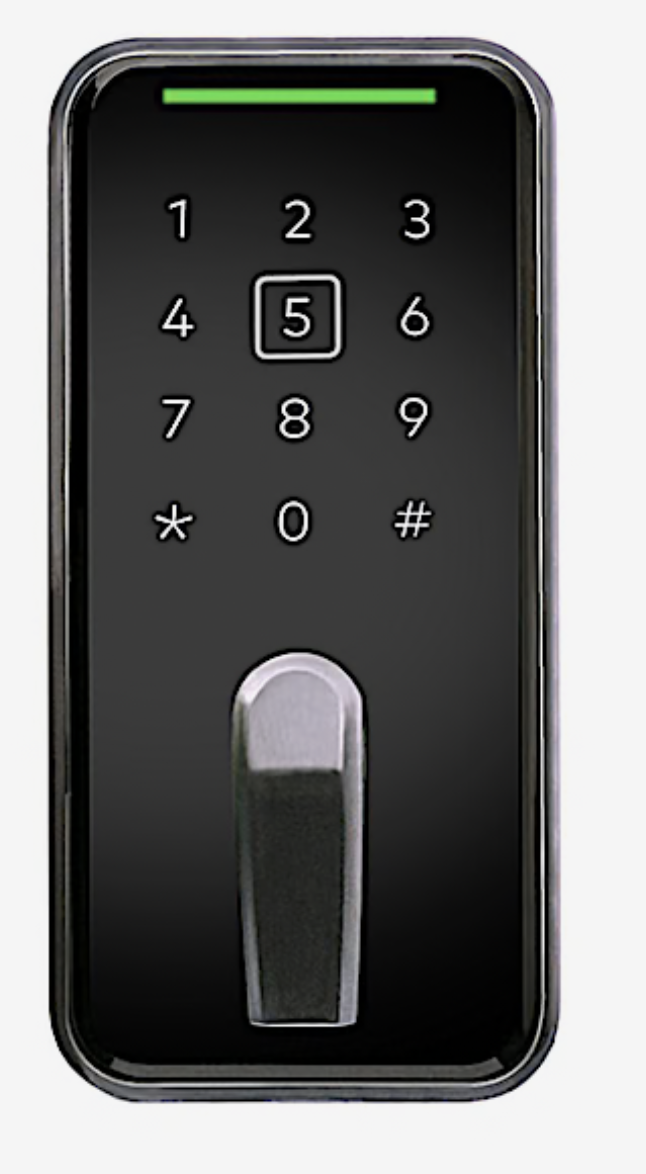
 Overview
If your building uses dormakaba EVO LZ smart locks integrated with ButterflyMX, you can unlock your apartment door and common area doors directly from the ButterflyMX mobile app — no separate dormakaba app required. Depending on how your property's locks are configured (Online/Wi-Fi or Offline/Bluetooth), you may be able to unlock using a PIN, Swipe-to-Open, Bluetooth Tap-to-Unlock, or a dormakaba ComID fob. Here's what you need to know to get started and get the most out of your smart lock.
⚠️ Note: Some unlock methods depend on whether your building's locks are set up in Online (Wi-Fi) or Offline (BLE) mode. If you're not sure which mode your building uses, contact your property management office.
What You'll Need
Before you can use your dormakaba smart lock, make sure you have:
- ✅ The ButterflyMX mobile app — Download it for free on iOS (App Store) or Android (Google Play)
- ✅ A ButterflyMX account — You should have received an email invitation from your property manager. If you haven't, contact your property management office.
- ✅ Bluetooth enabled on your phone (for Tap-to-Unlock) — Required any time you want to unlock via Bluetooth, and required to sync for Offline/BLE buildings.
- ✅ Internet access (cellular or Wi-Fi) — Required to authenticate and to use Swipe-to-Open or Visitor Pass (Online/Wi-Fi mode only).
- ✅ A dormakaba ComID fob (optional) — Only if your property manager issued you one. Standard ButterflyMX fobs are not compatible with dormakaba locks.
Setting Up Bluetooth on Your Phone
Your dormakaba lock uses Bluetooth for Tap-to-Unlock. Make sure Bluetooth is enabled:
- On iPhone: Open Settings → Tap Bluetooth → Toggle Bluetooth ON
- On Android: Open Settings → Tap Connected devices (or Connections) → Tap Bluetooth → Toggle ON
You can also turn on Bluetooth from your phone's Control Center (iPhone) or Quick Settings panel (Android).
How to Unlock Your Door Using the ButterflyMX App
Option 1 — PIN (Online or Offline mode)
Enter your assigned 6-digit PIN at the lock's keypad. The lock will flash green to accept once the 6th digit is entered. You can now turn to unlock the door. If you change your PIN or if your existing PIN is not working on your Offline/BLE mode lock, please sync the lock first then try again.
Option 2 — Swipe-to-Open (Online/Wi-Fi mode only)
- Open the ButterflyMX app on your phone
- On the home screen, you'll see your doors listed with a Swipe to Open button
- Swipe on the button under your unit lock (or the door you'd like to open)
- You'll see a confirmation on screen once the command was sent to the lock
⚠️ Important: Swipe-to-Open requires an active Wi-Fi connection at the lock. Unlike some other smart lock brands, dormakaba locks do not automatically fall back to Bluetooth if the lock is offline — if your lock is offline, use your PIN, fob, or Bluetooth Tap-to-Unlock instead.
Option 3 — Bluetooth Tap-to-Unlock (Online or Offline mode)
- Make sure Bluetooth is turned on on your phone
- Stand in front of the lock
- Open the ButterflyMX app and use the Tap-to-Unlock option for your door
- Hold your phone to the lock until it flashes
- Wait for the green LED confirmation that the door can be unlocked
Option 4 — dormakaba ComID Fob (if issued)
Hold your fob near the fob reader on the lock, or the ButterflyMX card reader/intercom at the building entry point. The door will turn green and allow you to unlock — no app required. If you were recently given a fob but it is not working on your Offline/BLE mode lock, please sync the lock first then try again.
Good news: Once your property's ButterflyMX hardware has received the required firmware update, your dormakaba ComID fob can work at both your unit lock and ButterflyMX access points throughout the building (card readers and intercoms) — one fob for everything!
Don't have a fob yet? ComID fobs are issued by your property management office, not ButterflyMX.
Visitor Pass
Visitor Pass lets you give a trusted guest temporary access to the building (and unit door, in Online/Wi-Fi mode). If you don't see the Visitor Pass option in your app, your property manager has turned it off for your building.
Good to Know
- Online (Wi-Fi) locks: Support PIN, Swipe-to-Open, Visitor Pass, and Bluetooth Tap-to-Unlock.
- Offline (BLE) locks: Support PIN, fob, and Bluetooth Tap-to-Unlock only. Swipe-to-Open and Visitor Pass are not available when a lock is offline. Any credential changes require a sync at the door.
- ButterflyMX cannot remotely unlock a dead/offline lock. If the battery dies, your property's ELPS Battery Backup Device or a physical key can be used — contact your property management office.
Troubleshooting
| Problem | Solution |
|---|---|
| My PIN isn't working | Confirm your 6-digit PIN with your property manager; it may need to be re-synced to the lock (especially for Offline/BLE locks, which require an on-site sync after changes) |
| My Swipe-to-Open isn't working | Confirm your building uses Online (Wi-Fi) mode — Swipe-to-Open does not work on Offline locks or when the lock itself is offline |
| My fob isn't working | Contact your property management office — the fob may need to be re-programmed, or your building's ButterflyMX hardware may need a firmware update |
| Bluetooth Tap-to-Unlock isn't working | Confirm Bluetooth is on, make sure to hold the phone to the lock, and confirm you're logged into the correct account |
| I don't see Visitor Pass in my app | Your property manager ma not have this feature enabled for your building, or your lock is in Offline (BLE) mode |
| Locked out entirely / dead battery | Contact your property manager — they may be able to use the ELPS Battery Backup Device or confirm your access in the ButterflyMX OS |
| I got a new phone | Download the ButterflyMX app, log in with your existing account, and try unlocking again |
| I can't log into the ButterflyMX app | Confirm you're using the email/phone number you registered with, or use Forgot Password; contact your property manager or ButterflyMX Support if issues persist |
Frequently Asked Questions
Q: Do I need a separate dormakaba app?
A: No — residents only use the ButterflyMX app for all access needs.
Q: Can I use a ButterflyMX fob on my dormakaba lock?
A: No. Only dormakaba ComID fobs are compatible with dormakaba locks.
Q: How many digits is my PIN?
A: Your PIN is 6 digits and can be found in the ButterflyMX mobile app under Account.
Q: Is Visitor Pass available by default?
A: Yes, for Online (Wi-Fi) buildings, Visitor Pass is enabled by default. Your property manager can disable it, so if you don't see it in your app, check with them.
Q: What happens if my lock's battery dies?
A: Contact your property manager. They may be able to use the ELPS Battery Backup Device, or a physical key if one was provided.