 Overview
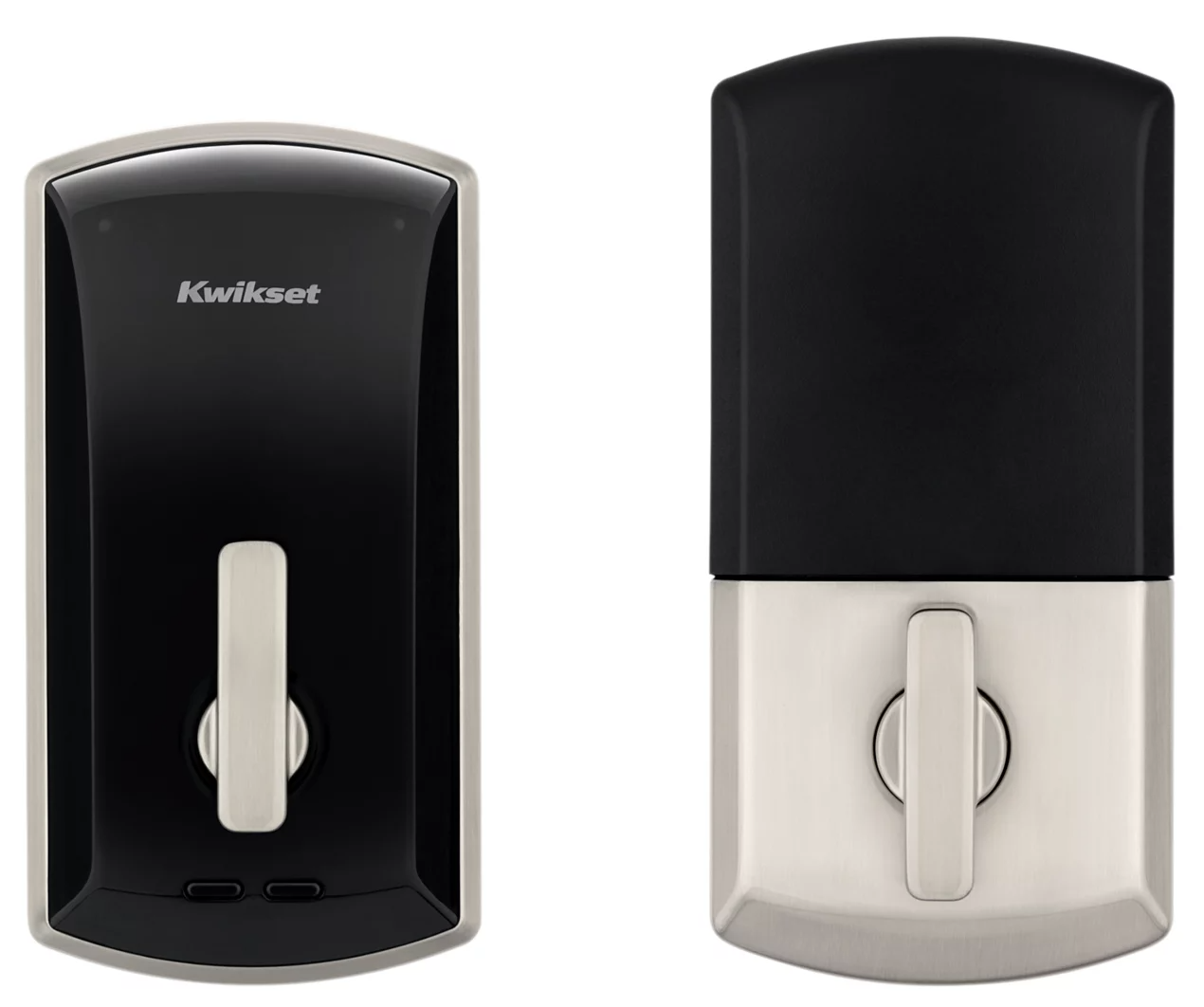
- The Kwikset / Weiser UNITE smart lock integration provides unified access management for both unit and common area doors through the ButterflyMX OS.
- Residents and staff access their locks using the ButterflyMX mobile app via Bluetooth (Swipe-to-Open) or a UNITE fob while standing near the door.
- All access management is centralized in the ButterflyMX OS — no separate app or portal is needed for day-to-day management.
- The Kwikset / Weiser UNITE is an offline/BLE integration — locks do not connect to Wi-Fi. This is by design and is not an error.
- PIN codes are not supported with this integration.
- Smart locks must be commissioned via the Kwikset / Weiser UNITE app by your installer before integration with ButterflyMX is complete. Refer to How to Set Up the ButterflyMX Kwikset / Weiser UNITE Smart Lock Integration for initial setup.
📎 For general Kwikset / Weiser UNITE lock information, visit Kwikset's support site.
ButterflyMX OS Information for Property Managers
Device Management
Navigate to: Devices → Smart Locks
From this page you can:
- View all commissioned UNITE locks — all locks mapped to your building will appear here
- Check battery levels — battery percentage is displayed per lock. Note: because these locks are offline/BLE, battery reporting is not continuous or real-time. Battery levels update when a Swipe-to-Open event unlock occurs at the lock.
- View lock status — UNITE locks will display as "Local Only" in the OS. This is expected and normal — it simply indicates the lock operates via Bluetooth, not Wi-Fi. It does not mean the lock is broken or offline.
-
Click into a lock to view:
- Door release history (user data is obscured for privacy)
- Permissions (which residents and staff have access)
- Recent lock events and activity
Important: The ButterflyMX app can only unlock UNITE locks — it cannot remotely lock them. The ButterflyMX OS also cannot display real-time locked/unlocked state for these locks.
Assigning Access
Unit Smart Locks
- When a resident is added to a unit in the ButterflyMX OS, they automatically receive access to that unit's smart lock via the ButterflyMX mobile app on their move-in date.
- Removing a resident from a unit in the OS removes their smart lock access.
- You can confirm unit smart lock assignments under Spaces in the OS — look for the Smart Lock column.
Common Area Locks
- Common area lock access is managed via Access Groups in the ButterflyMX OS.
- When the UNITE integration is enabled, a default Smart Lock Access Group is automatically created. All newly mapped UNITE locks automatically join this group.
- By default, this group includes existing Property Administrators and Community Administrators.
- To grant residents or staff access to common area locks, add them to the appropriate Access Group under Access Management in the OS.
Fob Management
UNITE fobs are compatible with both:
- ✅ ButterflyMX hardware (card readers, 2-door controllers)
- ✅ Kwikset /Weiser UNITE unit locks
Residents only need one fob for building-wide access.
To issue a fob to a resident:
- A user with Property Manager or Admin role must open the ButterflyMX app
- At the top of the screen, choose "+ Kwikset / Weiser Fob" to begin
- Follow the in-app instructions to initiate fob encoding
- Hold the fob against the UNITE lock to complete encoding
Important fob notes:
- Plan for an on-site session when issuing new fobs or re-encoding existing ones
- Each future fob change will also require this on-site step
Battery Alerts
To receive notifications when a lock battery is running low:
- Navigate to Integrations → Kwikset / Weiser Integration Settings in the ButterflyMX OS
- Configure battery alert thresholds for tenant notifications and admin notifications
📎 Refer to How to Enable Smart Lock Battery Alerts in the ButterflyMX OS for step-by-step instructions.
Note: Since UNITE locks are offline/BLE, battery levels are not updated in real-time. Battery data reflects the most recent Bluetooth event.
Vendor & Visitor Access
- Vendor Access: Use custom Access Groups to grant temporary or ongoing access to vendors. Add the vendor as a user in the OS and include them in the appropriate Access Group.
- Visitor Pass: Visitor Pass is available for building entry points (intercoms, keypads). However, Visitor Pass does not extend to unit-level UNITE locks — visitors accessing a unit must be let in by the resident directly.
Frequently Asked Questions
Q: Why do the locks show as "Local Only" or "Offline" in the OS? Is something wrong? A: No — this is completely expected. UNITE locks are BLE-only devices that don't connect to Wi-Fi. "Local Only" simply means the lock operates via Bluetooth proximity, not through the internet. This is normal and not an error.
Q: A resident says they can't unlock their door. What should I check? A: Verify the following:
- Is the resident's Bluetooth turned on?
- Is the resident standing within approximately 10 feet of the lock?
- Is the ButterflyMX app up to date on their device?
- Was the resident added to their unit in the OS before their move-in date?
Q: Can residents unlock their door remotely from anywhere? A: No. The UNITE is an offline/BLE-only lock. Residents must be physically near the lock (approximately 10 feet) with Bluetooth enabled on their phone to unlock it.
Q: Can I use PIN codes with UNITE? A: No. PIN codes are not supported with the UNITE integration. Access is via the ButterflyMX app (Swipe-to-Open via BLE) and UNITE fobs only.
Q: Can I assign access to multiple locks for one resident? A: Yes. Access permissions are managed per resident in the ButterflyMX OS via Access Groups. You can grant a resident access to multiple common area locks by adding them to the appropriate Access Group.
Q: What happens if a resident gets a new phone? A: The resident should download the ButterflyMX app on their new phone, log in with their existing account, and stand near their lock to enable the Bluetooth Swipe-to-Open.
Q: If I factory reset or replace a UNITE lock, what do I do? A: A replacement or reset lock will need to be re-commissioned via the UNITE app before it can be re-mapped in the OS.
Q: Why isn’t smart lock door release history shown in the ButterflyMX mobile app?
A: To protect resident privacy, smart lock door release history is only available to authorized staff in the ButterflyMX OS.