Context:
If you’re an admin at a building with ButterflyMX, you’ll want to log into ButterflyMX regularly to:
- View audit trails
- Manage permissions
- Manage integrations
Logging into the ButterflyMX OS is simple. If you work in a building with ButterflyMX, follow these three simple steps to log in.
Note: You cannot access the ButterflyMX OS from our mobile app. Please use a browser on your computer, smartphone, or tablet to log in.
How to log into the ButterflyMX OS:
- Go to the ButterflyMX website
- First, open the ButterflyMX homepage by visiting butterflymx.com.
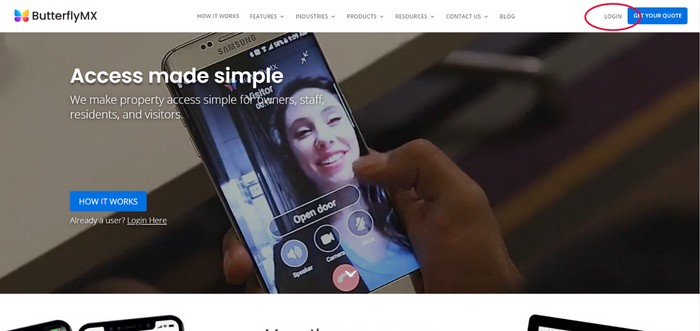
- Click ‘Login’ in the top right-hand corner of the homepage
-
Click on the ‘Login’ button at the top right-hand corner of the ButterflyMX homepage.
-
- Enter your email and password
- Next, enter the email address associated with your ButterflyMX admin account. Lastly, enter your password and click ‘Sign In’.
- You can also sign in via Microsoft or Google SSO
-
Once you’ve entered your username and password, you will be logged in to your ButterflyMX OS.
- Note: If you do not know your password, you can reset it by clicking ‘Forgot password?’ under the login screen.
- If you are unsure if you have a registered admin account, please click‘"Check here"’ at the bottom of the login screen.
- If your property does not currently have any administrators assigned, please reach out to your ButterflyMX Client Success Manager or the ButterflyMX Support Team, as they will be able to point you in the right direction.
- Next, enter the email address associated with your ButterflyMX admin account. Lastly, enter your password and click ‘Sign In’.