Context:
ButterflyMX’s cloud-based access control system simplifies building-wide access. It empowers you, your building staff, and your tenants to unlock any door, gate, or garage with a smartphone, fob, key card, or PIN code. With our access readers installed at your amenity spaces, garages, or auxiliary doors, you may offer key cards or fobs as an entry method for those who need access.
There are TWO ways you can program your key cards and fobs. Read this article to learn more!
This article covers-
- Prerequisites for programming key cards & fobs
- Method 1 - How to program key cards & fobs WITHOUT a programmer (keypad reader only)
- Method 2 - How to program key cards & fobs WITH a programmer
- Don't have a fob/keycard programmer but want one? You can buy one here on our online store!
1. Prerequisites for programming key cards & fobs:
Before you get started with programming a new key card or fob with either method, you will need the following items-
- ButterflyMX fob programmer or keypad
- ButterflyMX fobs or key cards
- A computer with an internet connection
- Required for method 2 - the same computer needs to have a USB connection (or a dongle that supports USB)
- Access to the ButterflyMX OS
2. How to program key cards & fobs WITHOUT a programmer:
To program key cards & fobs WITHOUT a programmer (with a keypad reader), follow these 6 steps-
- Tap the key card or fob on the keypad reader
- Simply tap the key card or fob you want to program on the keypad reader.
- Go into the “Door Releases” tab in the ButterflyMX OS
- In the ButterflyMX OS, find the “Door releases” tab and locate the most recent door release that is labeled as “Denied.”
- Click the green plus “+” button
- Click the green plus “+” button, and a pop-up will appear. In the pop-up, select the tenant you are programming the key card or fob for in the “Tenant” field.
- Choose “Key fob & card” for the “Type” field
- In the “Type” field, press “Key fob & card.”
- Click “Save”
- Click the save button to complete the programming.
- Repeat the process for each key card or fob
- Repeat this process for each user that requires a key card or fob.
3. How to program key cards & fobs WITH a programmer:
To program key cards & fobs WITH a programmer, follow these 7 steps-
- Plug in the USB programmer
- Simply plug the USB programmer into your computer.
- Find the resident in the ButterflyMX OS
- Search the “tenants” tab in the ButterflyMX OS for the user you are programming the key card or fob for. Once found, click on their name to view their profile page.
- Click on the “Access tools” tab
- Locate and click on the tab labeled “Access tools.”
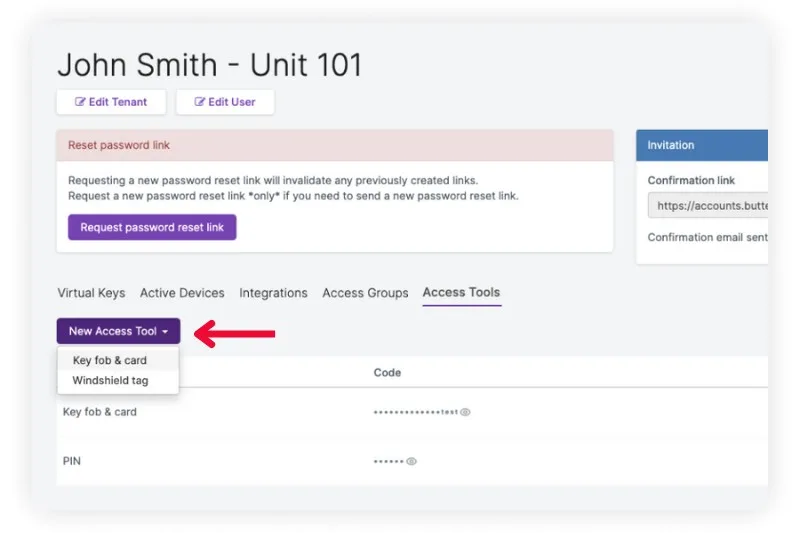
- Click “New access tool” and select “Key fob and card”
-
Click “New access tool” within the “Access tools” tab. Then, select “Key fob & card.”
-
- Place a single fob or key card on top of the programmer
- Place the fob or key card that is being programmed on top of the programmer. To avoid interference, make sure only one fob or key card is placed on the programmer at a time.
- Populate the ID number
- Once the fob or key card has been placed on the programmer, its ID number will automatically populate in the “Identifier” field of the popup. It will automatically save to the resident’s access tools for you, so there are no extra steps required.
- Repeat the process for each fob or key card
- Repeat this process for each resident that requires a fob or key card. Residents may have as many fobs or key cards associated with their account as needed.