Context:
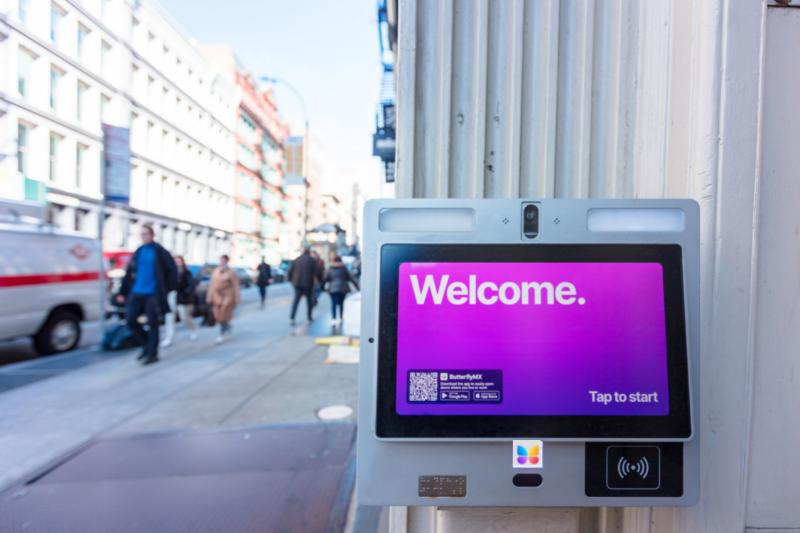
Your ButterflyMX video intercom is often the very first thing a resident, visitor, or delivery person sees when arriving at your property. This provides a unique opportunity to digitally greet guests and provide a warm welcome home to your residents after a long day.
The ButterflyMX video intercom comes with a default welcome screensaver that does just that, but you might have changed it to a custom screensaver somewhere along the way. If you want to revert your video intercom back to the original welcome screensaver, read this article to learn how.
What to do:
- Log into the ButterflyMX OS
-
Log into the ButterflyMX OS on a computer.
-
- Click ‘Inactivity Messages’
-
Click ‘Inactivity Messages” from the menu on the left side of the screen.
- In this section, you can see any past inactivity messages or screensavers that have been used at your property by toggling through the 3 tabs at the top of the screen.
-
- Click ‘Add new’
-
Click ‘Add new’ in the top right corner of your screen.
-
- Select ‘ButterflyMX Welcome Screensaver’ from the dropdown menu
-
Select ‘ButterflyMX Welcome Screensaver’ from the dropdown menu.
-
- Choose the parameters for the screensaver
-
You will need to choose:
Attach to Intercoms — Select which intercom(s) you would like the screensaver to be displayed on if you have multiple intercoms.
Time Limit:
From — Set the start time for the screensaver to display.
To — Set the end time for the screensaver to display.
Shown All Day — Toggle this option if you would like the screensaver to display all day.
Days — Select the days of the week you would like the screensaver to display.
-
- Hit ‘Save’
- Hit ‘Save’ to push the screensaver to your video intercom(s) at the times of day/ days of the week you’ve selected. You can come back and change the screensaver or the settings at any time.
Note: If there is already a custom screensaver or inactivity message set on the intercom for the same time period, the ButterflyMX Welcome Screensaver will not be shown.
Please ensure any overlapping screensavers or inactivity messages are removed or rescheduled before saving