Context:
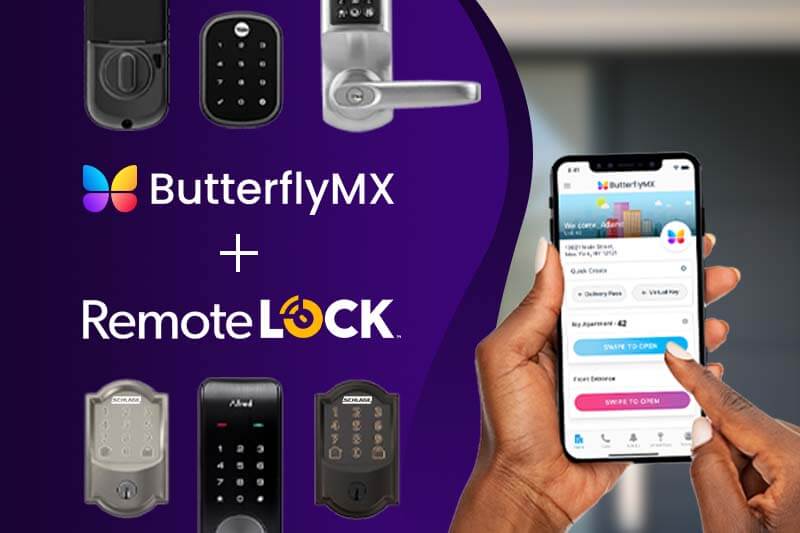
ButterflyMX allows your residents to open and manage doors and gates from their smartphones. This creates convenience and safety for you, your residents, and your building staff. Through ButterflyMX’s integration with RemoteLock, you can now connect ButterflyMX to the Schlage Encode WiFi smart lock.
With this integration, property staff and residents can easily and securely access your building’s front entrance, amenity spaces, and individual apartment units — all from one mobile app.
Read this article to learn:
- The benefits of the RemoteLock integration
- How to enable the RemoteLock integration for your property
How the RemoteLock integration will benefit your property:
- Complete property access management. This integration serves as an access solution for main entrances, gates, garages, common areas, amenity spaces, and residential units.
- Seamless experience for your residents. Use one app to access your building, apartment units, and any amenity spaces.
- Access for trusted guests. Dog walkers, plumbers, and other service providers can easily access the building and apartment when the resident is out of town. No need for building staff to let them in.
- Choice and flexibility. Choose the smart lock model best suited for your property’s unique needs.
How to enable the RemoteLock integration for your property
Follow these steps to set up the RemoteLock integration at your building:
- Create a RemoteLock account
- Reach out to your dedicated CSM to enable your RemoteLock integration and request an account
- Provide Details: Please provide an email for your RemoteLock account, only 1 email can be used per property.
- Verify Email: Check your email for a verification link from RemoteLock and click the link to verify your account.
- Login: Once verified, log into your RemoteLock account to proceed with the setup.
- Import Schlage Encode Smart Locks into RemoteLock
- Connect to WiFi: Ensure that each Schlage Encode lock is connected to the building's WiFi network and uniquely named via the Schlage Home app. This is essential for the integration.
- Access RemoteLock Dashboard: Log into your RemoteLock account and navigate to the 'Devices' section.
- Add New Device: Click on 'Add Device' and select 'Schlage Encode' from the list of compatible devices.
- Follow Setup Instructions: Follow the on-screen instructions to pair the Schlage Encode locks with your RemoteLock account. Make sure each lock is successfully added and visible in your RemoteLock dashboard.
- Log into the ButterflyMX OS
- Log into the ButterflyMX OS on a computer.
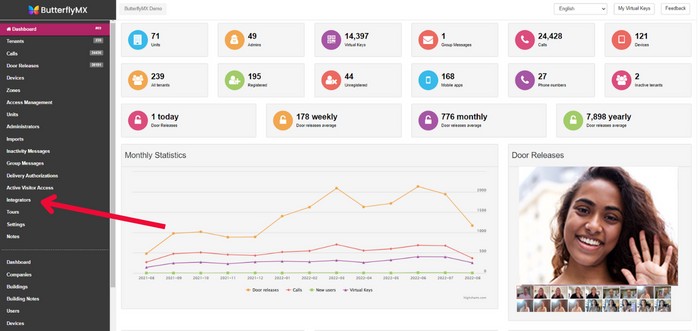
- Navigate to the ‘Integrations’ section
-
Click ‘Integrations’ from the menu on the left-hand side of the page.
-
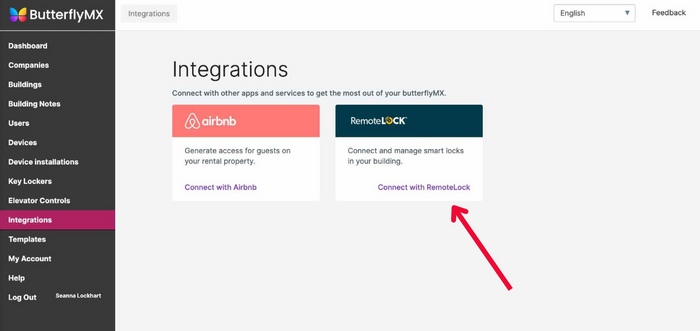
- Click ‘Connect with RemoteLock’
-
On this page, you’ll see a RemoteLock section. Click ‘Connect with RemoteLock’ to set up the integration.
-
- Enter your RemoteLock credentials
- Then, the system will prompt you to enter your RemoteLock account credentials to authorize access to RemoteLock from the ButterflyMX OS.
- Map your smart locks
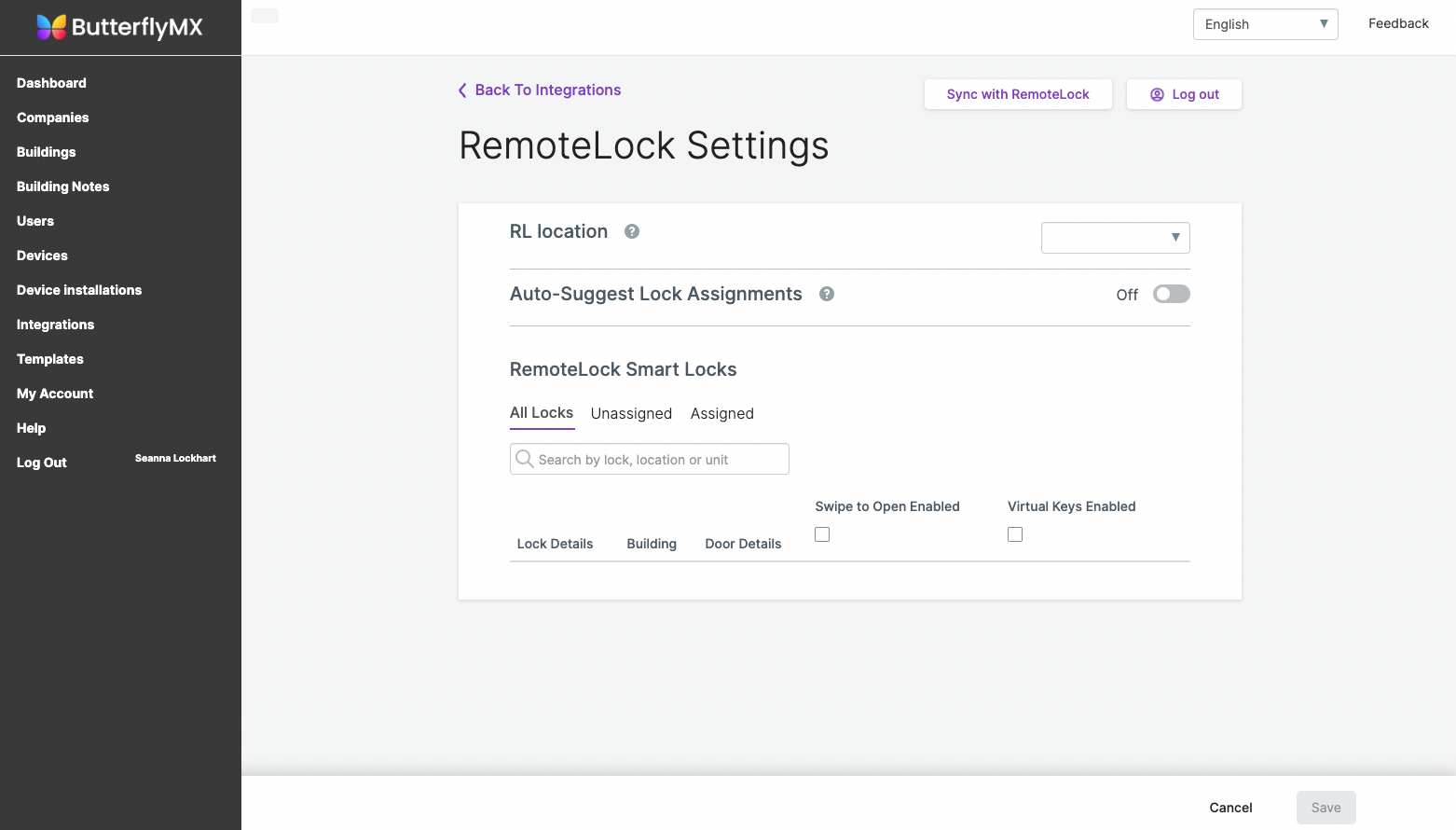
- After signing in, you’ll be returned to the RemoteLock settings page in the ButterflyMX OS. Select your RemoteLock location from the dropdown to map your locks to units and/or common doors.
-
You’ll see the following labels for your locks:
- Suggested/All Locks: ‘Suggested’ (if you have auto-suggest enabled) displays all locks that match a unit in the property. ‘All Locks’ (if you have auto-suggest disabled) displays all locks associated with this account.
- No Match/Unassigned: ‘No Match’ and ‘Unassigned’ display all locks not associated with units/common doors for your account. If there are any unassigned locks in the account, this tab will display automatically.
- Assigned: All locks in the account that are currently associated with units and/or common doors.
-
To map your building’s locks, select from the following two dropdowns next to each listed lock:
- ‘Building’ lists all buildings associated with this RemoteLock account.
-
‘Door Details’ lists all units available for the selected building.
- Click ‘Sync with Remote Lock’
- Click ‘Sync with RemoteLock’ to sync tenant PINs with RemoteLock.
- Review an individual’s tenant data to ensure successful sync
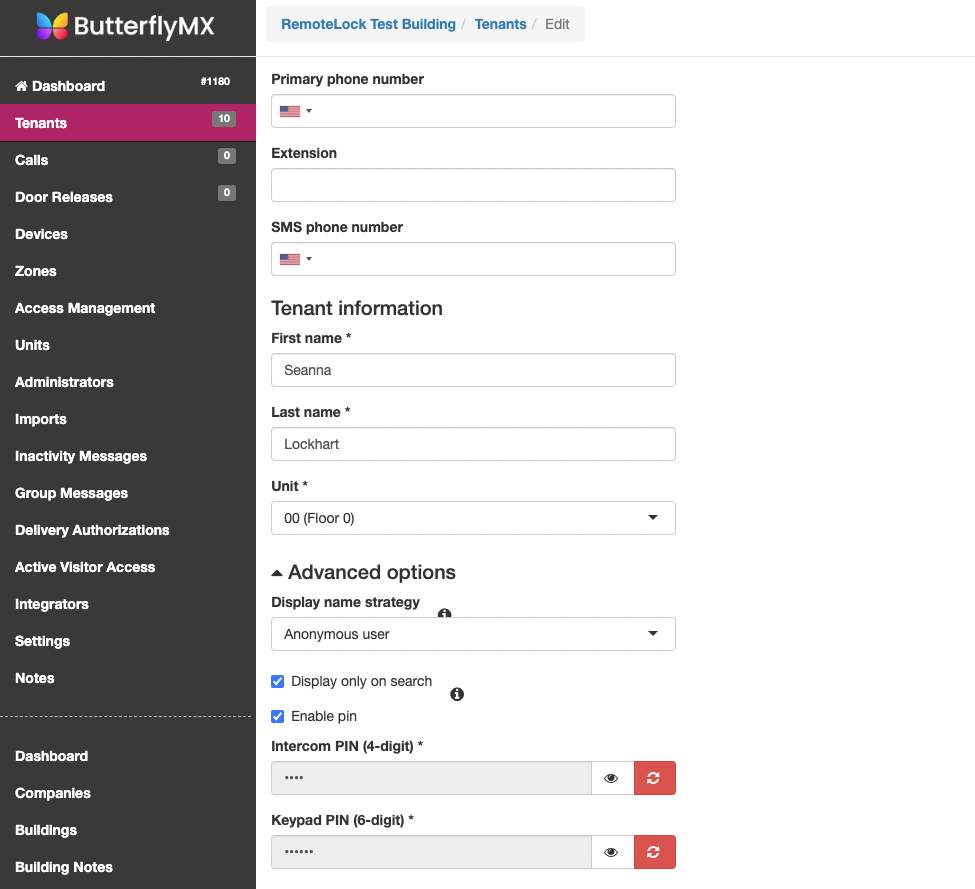
- Check an individual tenant’s information to confirm the sync was successful:
- Navigate to the ‘Tenants’ section of the ButterflyMX OS.
- Click the edit button — the pencil and paper icon — to the right of the tenant name.
- Click ‘Advanced options.’
- Click the eye icon to view the hidden PIN.
-
Cross-check the PIN in your RemoteLock dashboard.
- Once the RemoteLock integration is set up, residents will have the functionality available in their ButterflyMX app to unlock their unit doors. They can open their unit doors using the Mobile Key or Swipe-to-Open button on their home screen.
- Set up your common area doors
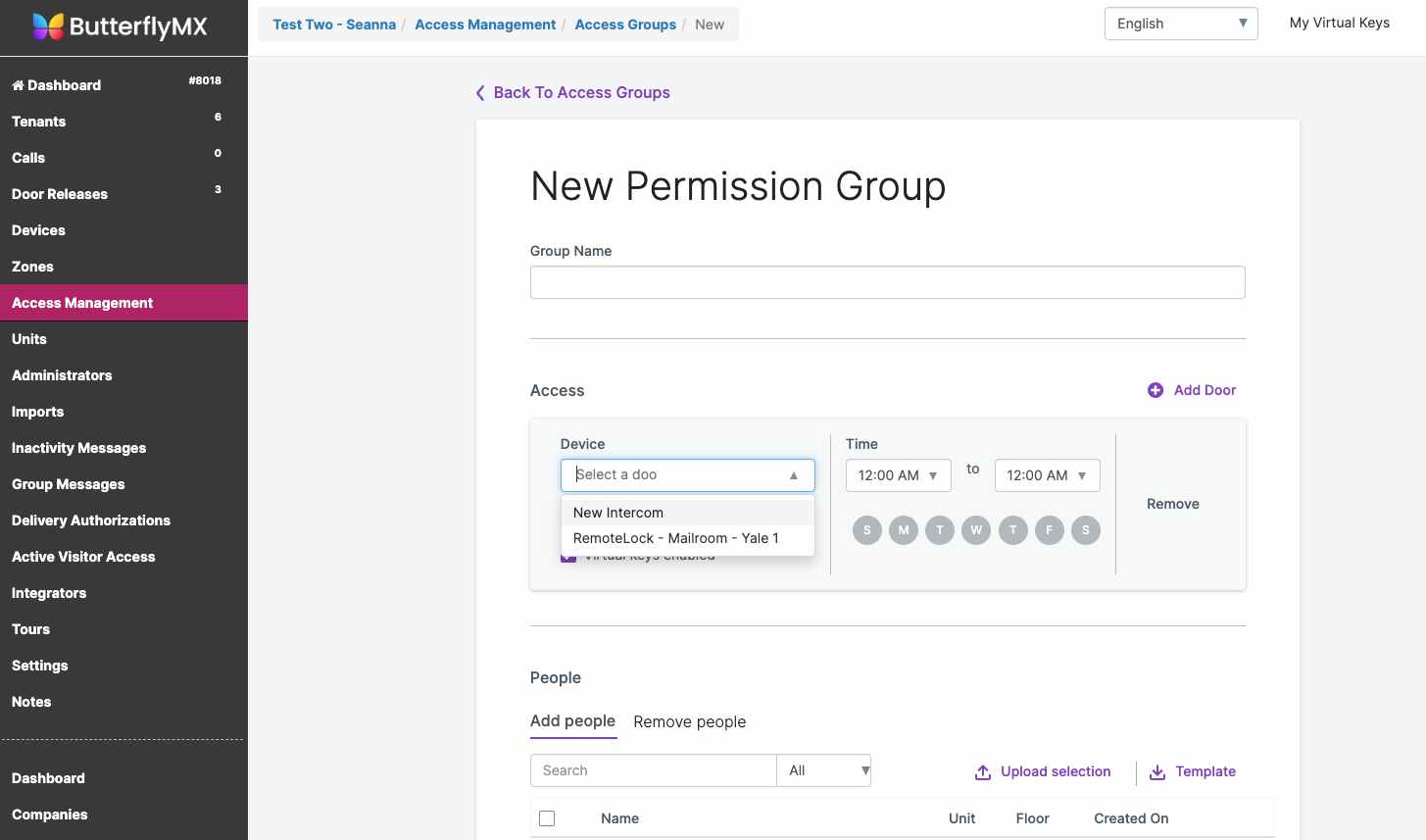
- No tenant will have access to any common door RemoteLock smart locks until you’ve set up the access group within the ButterflyMX OS for that specific smart lock.
-
To do this, follow these instructions:
- Click on ‘Access Management’ from the menu on the left side of the screen.
- Click ‘Create New Group.’
- Click ‘Group Name’ to name the access group you are creating.
- In the Access section, select the RemoteLock common door lock from the ‘Device’ dropdown.
- The name associated with the lock on the RemoteLock settings page will be displayed as the device name.
- Click ‘Time’ if you’d like to create a schedule for accessing the area.
-
Clicking ‘Add people’ or ‘Remove people’ allows you to control which tenants have access to that space
Important note: For residents to use the integration, they first need to be registered for ButterflyMX. If you need to resend a registration email to any of your residents, you can do so by logging into your ButterflyMX account.
Check out our integrations page to see a list of other systems that you can connect your ButterflyMX system with to further simplify property management and continue delighting your residents.